Session View
Press Tab (or choose Session at the bottom right) for a grid of clips you can start and stop while the song plays, as in Ableton Live. Each column is a track, each row a scene. Under each column is that track's mixer; this is Togeda's mixer (see Mixing). With more tracks than fit, scroll sideways: the scene names in the Main column stay on the right.
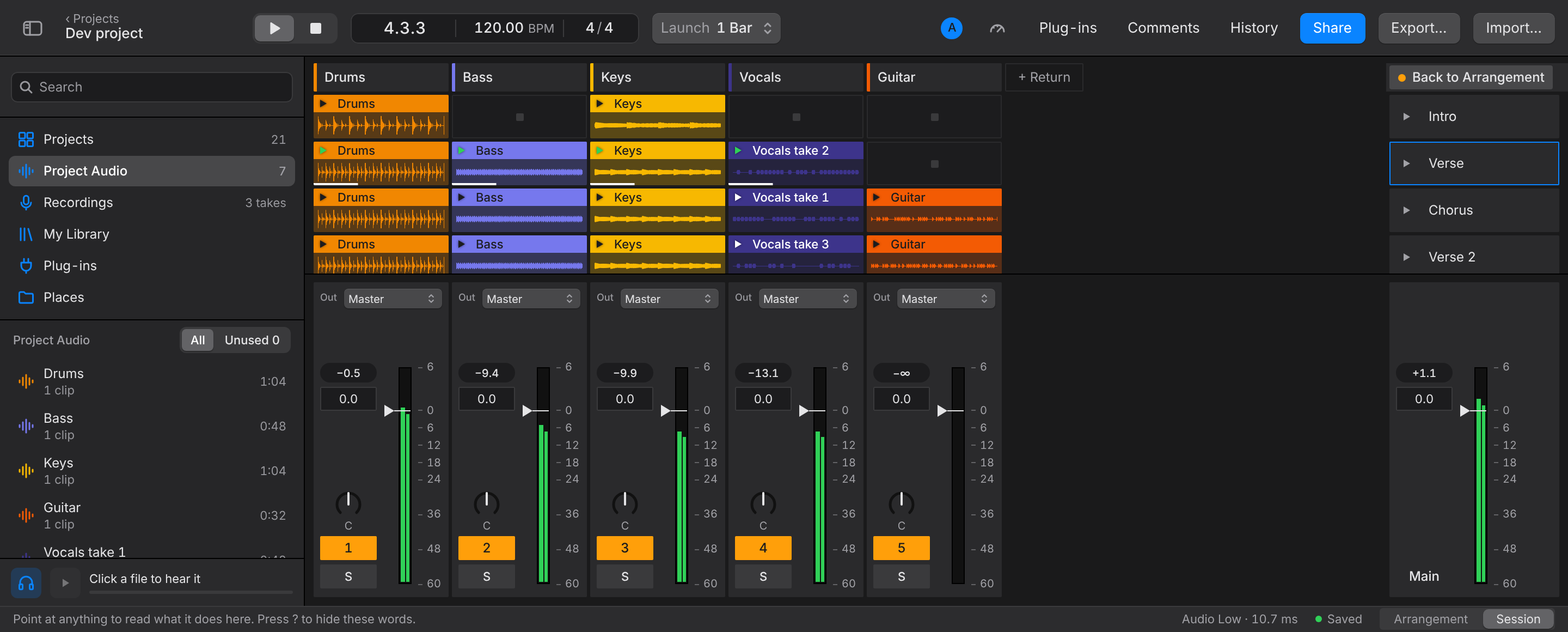
Fill the grid
- Drop audio from the browser, or a clip from the arrangement, on a slot.
- Make Scenes from Sections builds one scene per section of the arrangement, so you can jam over the parts of your song.
- Add Scene adds an empty row. Double-click a scene or clip name to rename it.
Launch
- Click a clip's triangle to start it; it starts on the next bar (change this with the Launch pop-up at the top). A scene's triangle, in the Main column, starts its whole row.
- Stop All Clips stops them; the small square in an empty slot stops just that track.
- A track playing a Session clip stops playing its arrangement clips. Back to Arrangement puts it back.
Launching is personal: what you launch plays in your browser only, so each person can jam on their own. Changes to the clips and scenes themselves are shared like everything else.
Tab goes back to the arrangement.