Arrangement View
The timeline of your song: tracks top to bottom, time left to right.
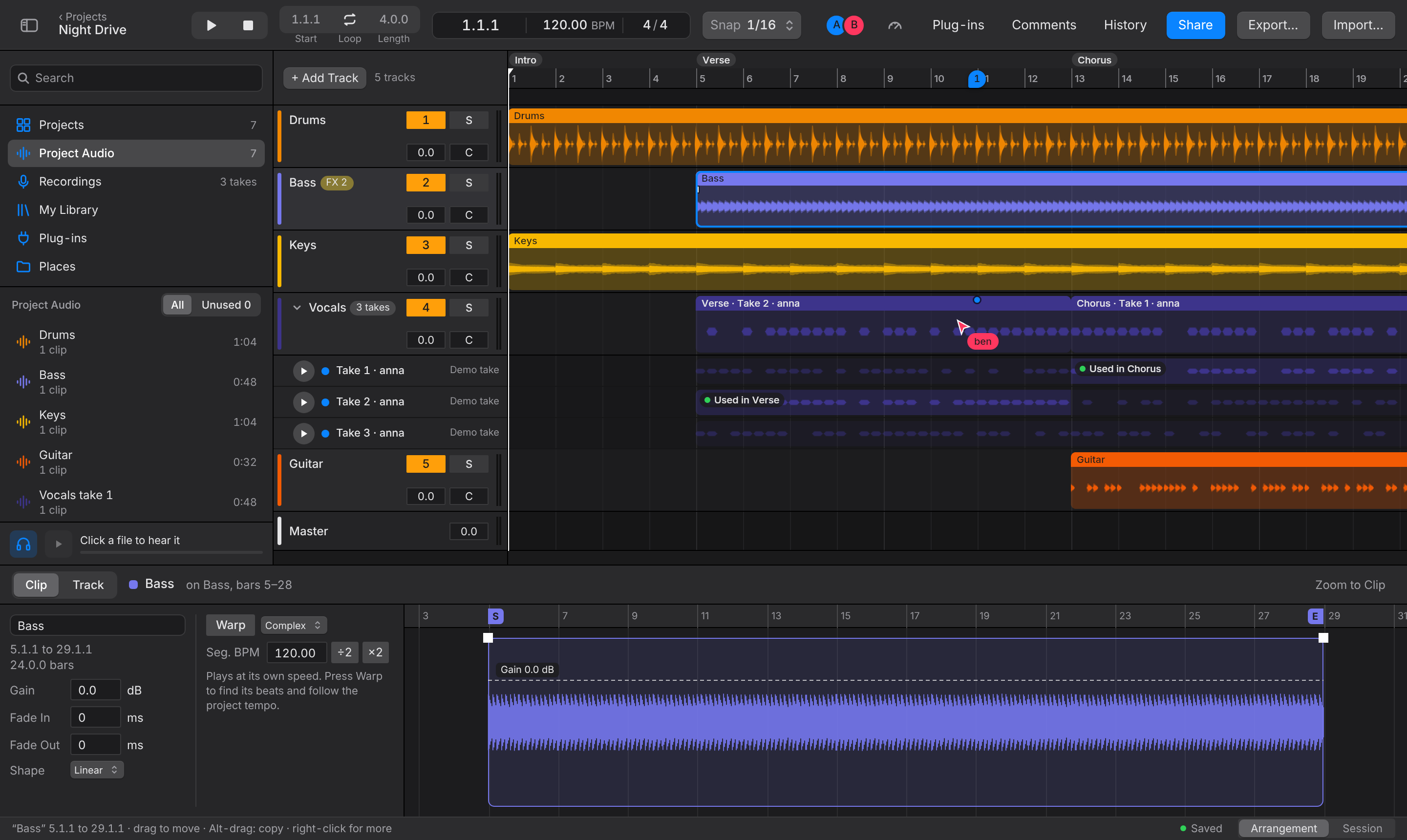
The ruler
The ruler has three rows:
- Sections (top): named parts of the song such as Intro or Chorus. Double-click the strip to add or rename one; right-click a section to play or loop from it.
- Bar numbers: drag up or down to zoom, sideways to scroll; double-click to fit the whole song. Drag on the bar numbers to set the loop.
- Play strip (bottom): click to play from there. The loop brace sits here; drag its ends. L loops the selected clips, or turns the loop on and off.
Tempo, time signature, loop start and length are fields in the toolbar: drag them up or down, or double-click to type.
Clips
- Move: drag a clip. Hold Option to copy it, Shift to drag without snapping. Arrow keys move the selected clips by one grid step.
- Trim: drag a clip's left or right edge.
- Select several: drag on empty space, or Shift-click.
- Split: Cmd+E at the playhead, or right-click Split Here. Cmd+D duplicates, Delete removes.
- Fades: drag the small squares at a clip's top corners. Drag the diamond up or down to bend the curve; double-click it to make it straight again.
- Grid: Option+1 narrows it, Option+2 widens it, Option+4 turns Snap on or off. The Snap pop-up in the toolbar does the same.
Select a clip to see it in Clip View at the bottom: name, gain, fades and fade shape, and the warp settings (Warping).

Tracks
- Cmd+Option+T adds an audio track. Drag a header to reorder; right-click a header to rename, colour or delete the track.
- On each header: the track number turns the track on and off (mute), S solos it, and the two boxes set volume and pan (drag them, or double-click to type). The thin bar is the level meter.
- Option+= and Option+- make all tracks taller or shorter.
Takes
When a track has several takes, U shows them as lanes under the track. Drag across a take to use it in each section you sweep over, or double-click a take lane to use that take in the section under the pointer.
Moving around
| Play or stop | Space |
| Go to the start | Return or Home |
| One bar back or forward | , and . |
| Zoom | Cmd+scroll, pinch, or = and - |
| Zoom to the selection, and back | Z, then X |
| Fit the song in the window | W |
| Grab the timeline | hold Space and drag, or drag with the middle button |
All of them are in Keyboard shortcuts.