Mixing
Mixer
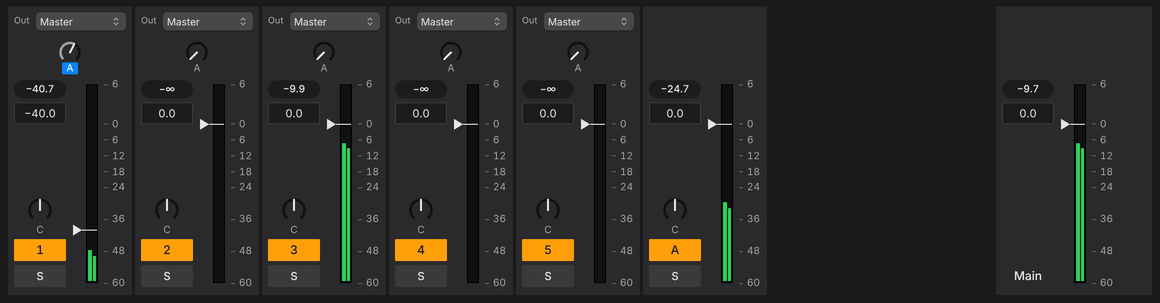
The mixer is in Session View (press Tab), under the clip columns, as in Ableton Live: per track the Out pop-up, a knob for each send, the peak level, volume, pan, fader and meter, the track number (turns the track on and off) and S for solo. Drag the line above it to make it taller or shorter; when it is short it folds into compact boxes. In Arrangement View each track header has the same number, S, volume and pan boxes.
Sends and returns
+ Return after the last column in Session View, or Cmd+Option+R, adds a return track (up to four, A to D). Each track then has a send knob for each return; the letter under a knob switches that send pre-fader (lit) or post-fader. Put a reverb or delay on the return through Togeda Bridge. New projects start with no returns.
Routing
The Out pop-up at the top of a mixer strip sends a track to another track or a return instead of the Master, for example to put several tracks through one plug-in. Solo keeps the path open, as in Ableton Live.
Plug-ins and racks
Select a track and press Shift+Tab for Track View: its plug-ins as cards with knobs, left to right.

- Drag plug-ins in from the browser's Plug-ins section, or use the Add Plug-in card. Drag a card to reorder.
- Click a card to select it, Shift-click to add more. Delete removes them.
- The power button turns a plug-in off; the swap button replaces it with another plug-in in the same place.
- Cmd+G groups the selected plug-ins into a rack. A rack has eight Macros: choose Map, then move any plug-in control to link it to a macro. One macro can turn several controls at once. Rand sets the macros at random. Cmd+Shift+G ungroups.
Pictures and meters
An EQ, compressor, gate, delay or reverb gets a picture of what it does above its four main knobs: the EQ curve (click a dot to pick a band), the compressor's curve, the delay's repeats or the reverb's tail. approx. in the title bar means the picture is a sketch from the plug-in's settings.
While a plug-in runs in your Bridge and its card is on screen:
- Two thin bars at the card's right edge show the level going in and coming out.
- A dot on a compressor's or gate's curve shows where the signal sits now. On a gate the dot turns green while the gate is open; the line marks its threshold.
- A compressor shows how much it squashes in an orange bar hanging from the top. GR is the plug-in's own figure; GR ≈ is worked out from the levels in and out, for plug-ins that don't report it.
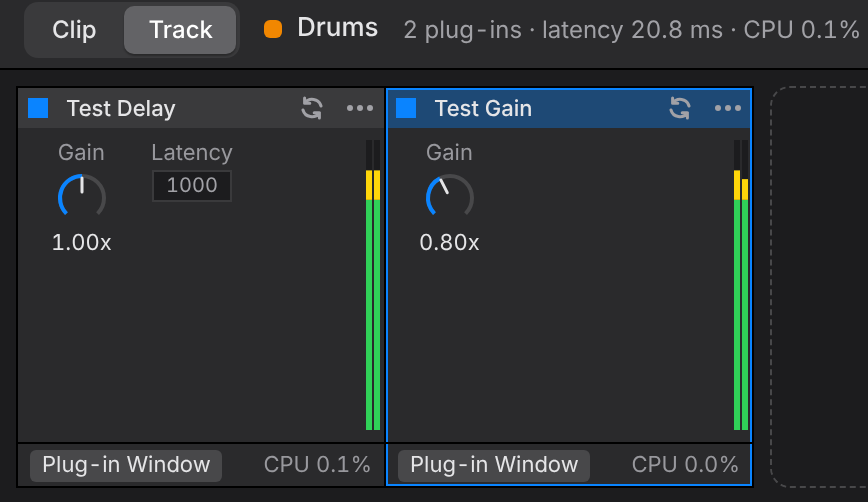
Plug-ins need Togeda Bridge on each listener's computer; without it, a track plays dry.
Audio settings
The gauge button in the toolbar opens the Audio menu: output latency (Low or Safe), dropouts and your device's sample rate. Togeda moves to Safe by itself if Low keeps dropping out.