Getting started
Sign in
Open https://studio.togeda.app and choose Continue with Google. Google is the only way to sign in.
The first time, Togeda opens a project of your own called Demo Song, with a short song already in it, so you can press Space and start playing with it straight away. After that, studio.togeda.app opens the project you had open last.
Your projects
Choose ‹ Projects above the project name, or the Projects section at the top of the browser on the left. It lists My Projects, Shared with Me and Trash.
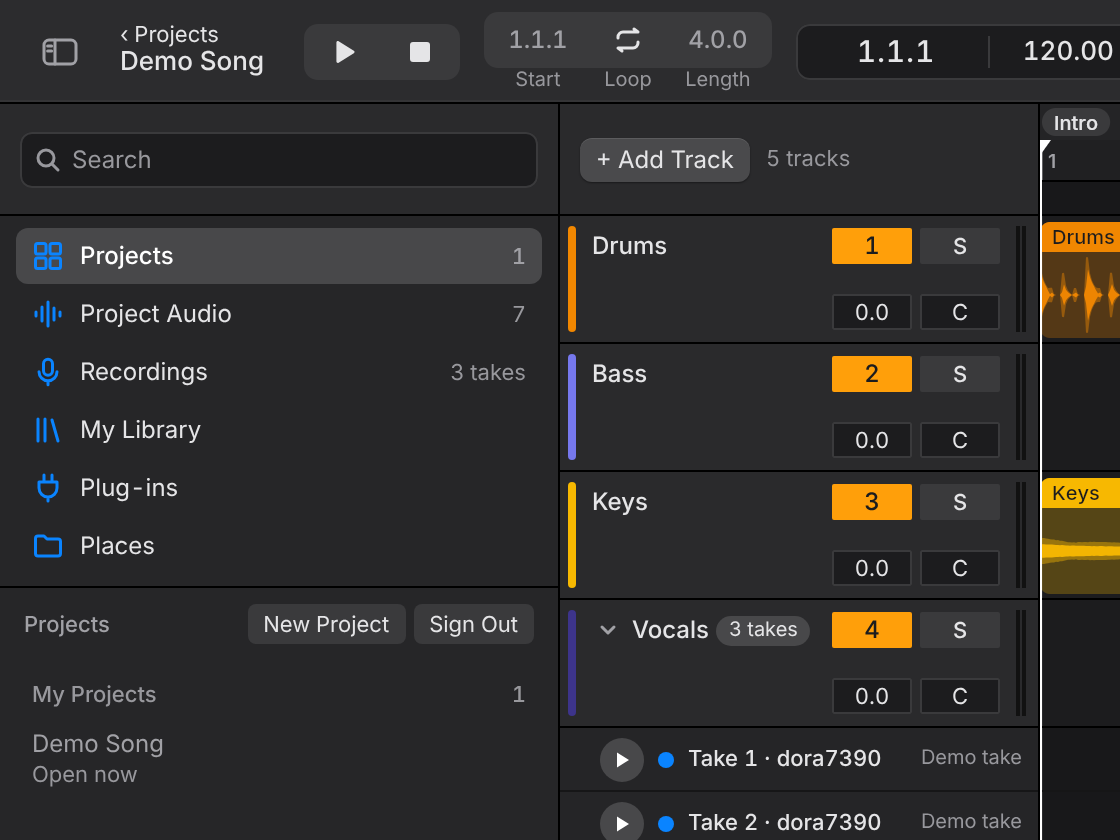
- Click a project to open it. New Project starts an empty one.
- Right-click a project to open it in a new tab, rename it, move it to Trash (it stays there for 30 days; right-click it there to Restore), or leave a project someone shared with you.
- Sign Out is in the same place.
The project window
- Toolbar (top): ‹ Projects shows your other projects; transport, tempo, time signature, loop and Snap; who else is here; Plug-ins (Track View), Comments, History, Share, Export… and Import….
- Browser (left): Projects, Project Audio, Recordings, My Library, Plug-ins and Places. Drag anything from here onto a track.
- Arrangement (middle): tracks and clips on a timeline. Press Tab for Session View.
- Detail View (bottom): Clip View for the selected clip, Track View for the selected track's plug-ins. Shift+Tab switches between them, Option+D shows or hides it.
- Info bar (bottom edge): says what the thing under the pointer does, and whether your changes are saved. Press ? to hide or show it.
Togeda remembers where you were: a reload brings back the same view, zoom and scroll.
When Togeda updates
When a new version of Togeda comes out while a project is open, a bar under the toolbar says New version is ready. Choose Reload when it suits you: the project opens again where you were, with all your changes. Togeda never reloads by itself, so playback and an export are never cut off; if one is running, Reload asks first.

Now and then an update changes how Togeda talks to its servers. Then the bar adds Reload to keep working: the page can't save changes until you reload. Nothing is lost, as your changes wait on your computer and are sent after the reload.
Add audio
- Drag audio files (WAV, AIFF, FLAC, MP3, OGG, M4A) from your desktop onto a track or onto empty space, or use Import… in the toolbar.
- Drag from the browser on the left: files already in the project, My Library (audio from all your projects, no upload again), or Places (folders on your computer).
- An empty project offers Load Demo Song if you want the demo again.
Files play at once, even before they finish uploading. Short loops come in warped to the project tempo; see Warping.
You can also open a song from another DAW: Import… takes a .dawproject file from Bitwig Studio, Cubase, Studio One and others. Audio, fades, sends, volume and pan come across; VST3, AU and CLAP plug-ins come across with their settings and play through Togeda Bridge. MIDI and the other DAW's own devices are left out, and a short report lists what was skipped.
Share
Choose Share to invite people by email or to turn on a link. Each person, and the link, can be Can view, Can comment or Can edit. Changes by anyone show up for everyone straight away, with their name on their cursor. Reset Link makes the old link stop working.
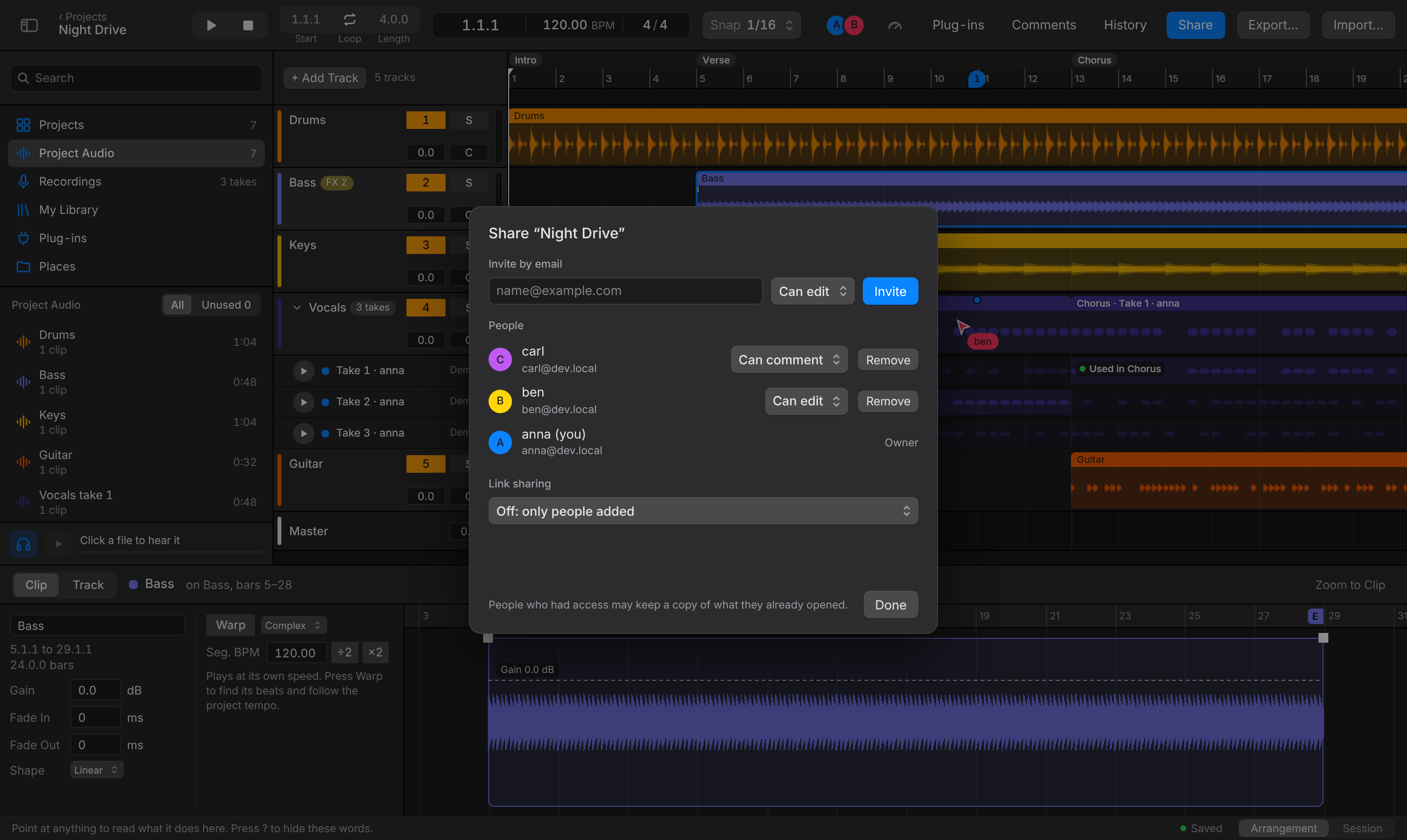
People who can view can still play the song, solo tracks and export.